A panel that fits
Keep descriptions, comments and recommendations together. Choose a tab and adjust the panel width to suit your screen.
MADE FOR DESKTOP YOUTUBE
A better place for the details.
More control over the way you watch.
Available free on the Chrome Web Store.
0.3.61 · Interest collectionsLatest updates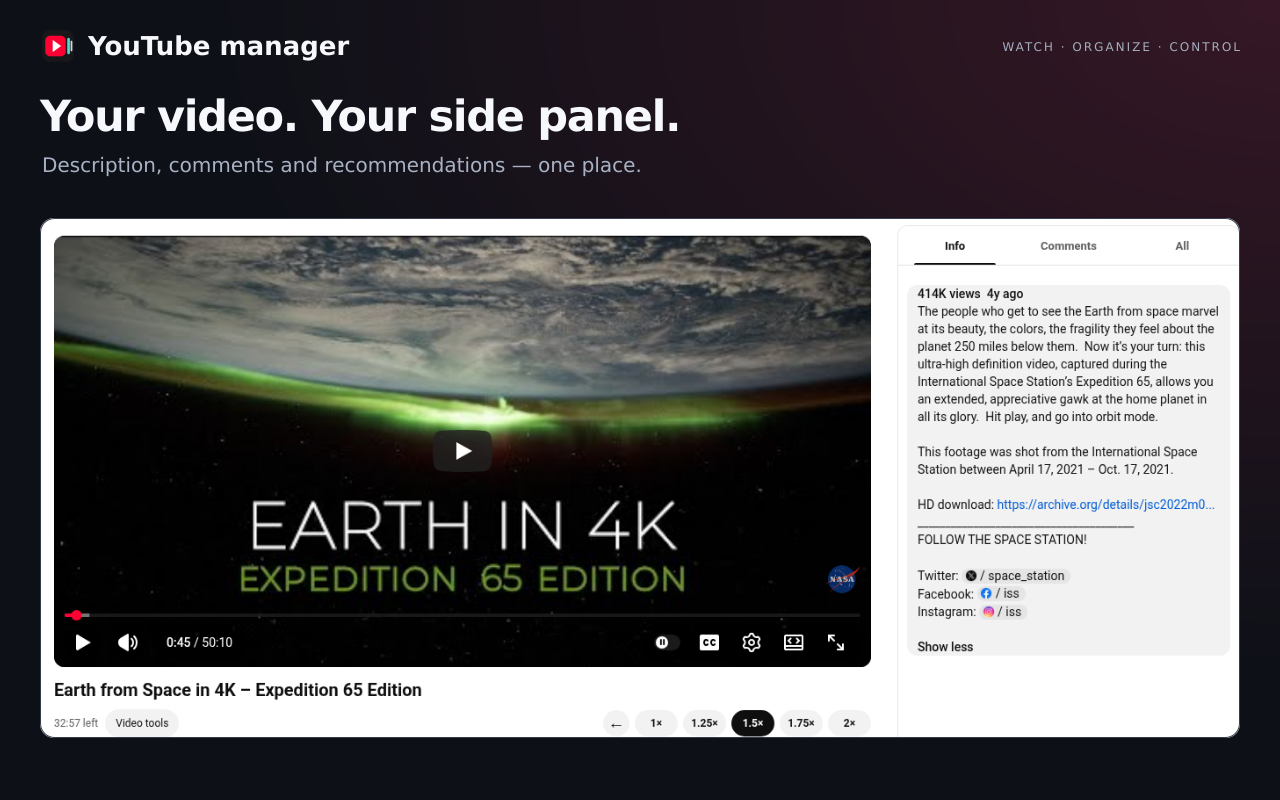
LESS FRICTION. MORE OF WHAT MATTERS.
Keep descriptions, comments and recommendations together. Choose a tab and adjust the panel width to suit your screen.
Choose 1×, 1.25×, 1.5×, 1.75× or 2×. Save a different speed for individual channels and see your remaining viewing time.
Save a moment with a note. Return to the exact timestamp, or use A–B repeat to watch a section again.
Preview of the next update · 0.3.61
Organize channels into topics, watch their videos together, compare topics and review channel activity.
Create a topic and add channels to see their videos automatically. A channel can belong to more than one topic.
Select up to 3 topics in the sidebar to compare their feeds.
Activity uses the latest visible uploads from Videos, Shorts and Live. Missing, uncertain or stale dates stay unknown. Removing a channel here does not unsubscribe on YouTube.
Interest collections organize channels by topic and bring their latest videos into one place.
Use + beside Your topics to create a topic. Choose its name, symbol and color. Select a parent collection to make it a subtopic.
Enter a URL with Add channel or use Choose from this page. You can also select channels under Manage in the left subscription list and add them to a topic. Existing topic assignments are kept.
Videos and upload times update automatically when you add channels, open collections or return to the tab. Saved videos appear first and remain available during updates.
Select up to 3 topics with the sidebar checkboxes, then choose Compare topics to see their video lists side by side.
Choose Mark as watched on a video card, then turn on Hide marked videos to leave the videos still to review. These marks apply within collections only.
In Channel activity, choose 90, 180 or 365 days to review quiet channels. Remove from collections tidies this list without unsubscribing on YouTube.
Selection covers channels currently loaded in the subscription list. Full-account subscription sync and unsubscribing are not included. Watched marks apply only within collections and do not sync with YouTube watch history.
Open Manage in YouTube’s left subscription list. Search by name, sort or filter by collection membership, then select all shown channels or individual ones and choose a topic. A short upload time appears to the right of each name and updates automatically.
Latest public upload found in Videos, Shorts and Live. — means no date confirmed; ~ means partial or older information. Lists and collections update automatically while in use.
Videos and upload times update automatically when you add channels, open collections or return to the tab. Saved videos appear first and remain available during updates.
Explore the current features and improvements, from collections and subscription management to search, playback and layout.
New: interest collections with subtopics, custom symbols and colors, combined feeds, comparison of up to 3 topics, watched marks and channel activity review.
Select all or some loaded channels in the left subscription list and add them to a topic. Search by name, sort by channel name or latest upload, and filter by collection membership. Upload times appear to the right of channel names.
Videos update automatically when you add channels, open collections or return to the tab. Saved videos appear first and stay visible during updates. Closing collections leaves ongoing checks running. Collections no longer need separate check or stop buttons.
Open collections to the left of Search options. The launch buttons recover after fullscreen or header changes. Dropdowns in collections and subscription management follow the settings theme, including their open menus.
Use one Search options button beside the search box for upload period, content type, duration, relevance or popularity, and additional features. Choose any date or the last 24 hours, 7, 30 or 365 days. Filters survive repeated searches and page changes. With Keep filters off, choices made on Home apply only to that page.
Home recommendations support upload period, Videos/Shorts and duration. Sorting, additional features, and Channels/Playlists/Movies apply only to search. Cards with unconfirmed required dates or lengths stay excluded while those filters are active; Any or disabling the feature restores them.
Automatic loading no longer stops after a few recommendations on reload. Hidden Shorts also use the existing upload-time service and cache, and matching cards appear in groups. No forced scrolling or separate white waiting cards are used. If a narrow filter reaches the automatic fill limit, scroll down or select Load more recommendations.
Reduced repeated position calculations and response analysis, and adjusted supplementary information work during scrolling. Requests and cached data for the same video are shared. Filter changes avoid unnecessary full-page reloads. Resetting filters no longer returns to an old search term.
The video resizes with the available width as you adjust the right panel. The former video-size option is now Bottom space: 0–320px, with a default of 180px. Theater mode, fullscreen and narrow screens keep YouTube’s layout.
Settings, guides, website and privacy information are aligned in 14 languages. Search controls follow light and dark themes. Period labels stay on one line; narrow screens allow horizontal scrolling of that row. Arabic right-to-left layout is supported.
Bookmarks, notes, channel speeds and cached information are kept. Resetting basic settings restores speed, panel width, the selected tab and bottom space, while keeping search filters and saved video tools. Data stays in this browser; missing Home video information is requested from YouTube through the existing service. Resetting basic settings keeps your collections and watched marks.
A first lookup still waits for YouTube’s response. Home may show no Shorts when none of the loaded recommendations fits the selected period. Search date checks use page dates and cached information without separate per-video verification requests.
Choose filters beside YouTube’s search box. Upload period, video/Shorts type and duration also filter home recommendations.
Choose filters beside YouTube’s search box. Upload period, Videos/Shorts and length also filter home recommendations. Home reuses the video information cache and checks missing details through the same service, then shows verified cards in groups. Cards with unconfirmed dates or lengths are excluded while the corresponding filter is active.
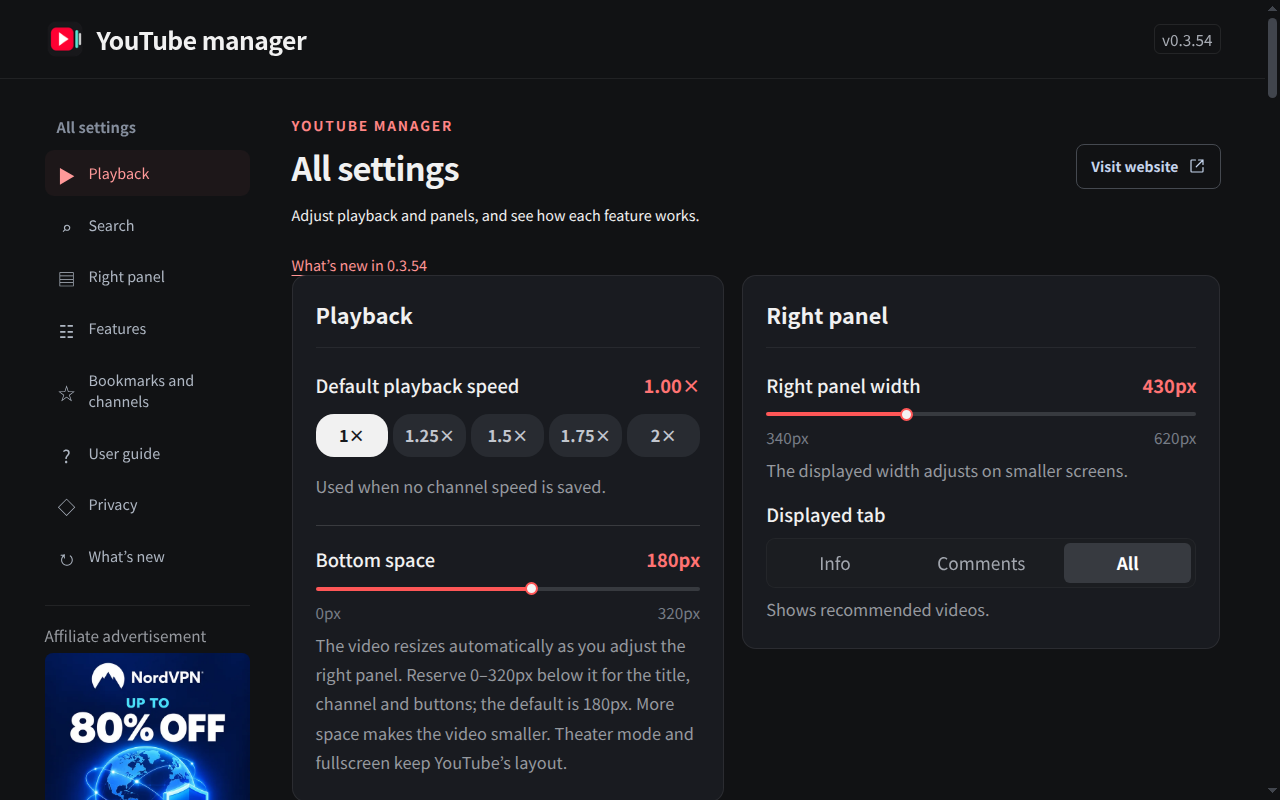
The video resizes automatically as you adjust the right panel. Reserve 0–320px below it for the title, channel and buttons; the default is 180px. More space makes the video smaller. Theater mode and fullscreen keep YouTube’s layout.
THE SMALL DETAILS ADD UP.
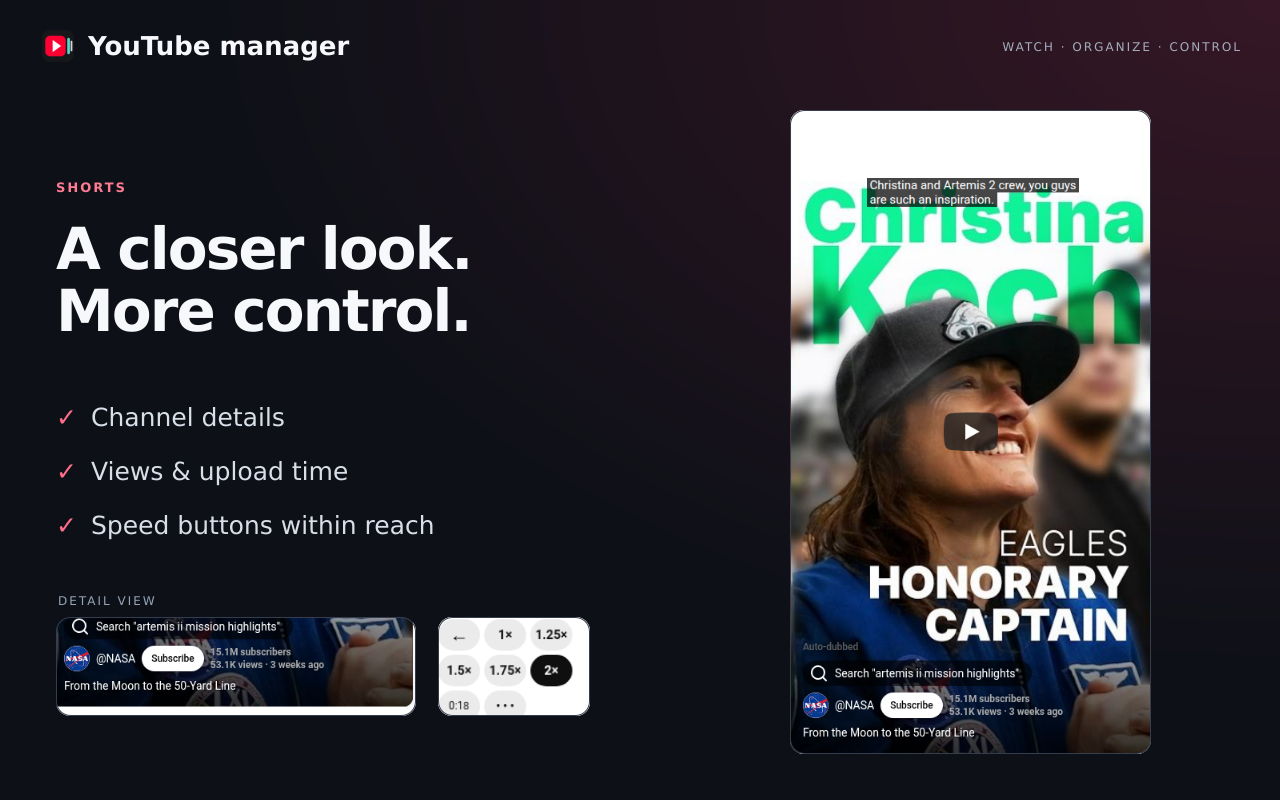
Know who you’re watching, see the numbers and keep your speed controls within reach.
Information is shown when it is available from YouTube.
FOR THE MOMENTS WORTH KEEPING.
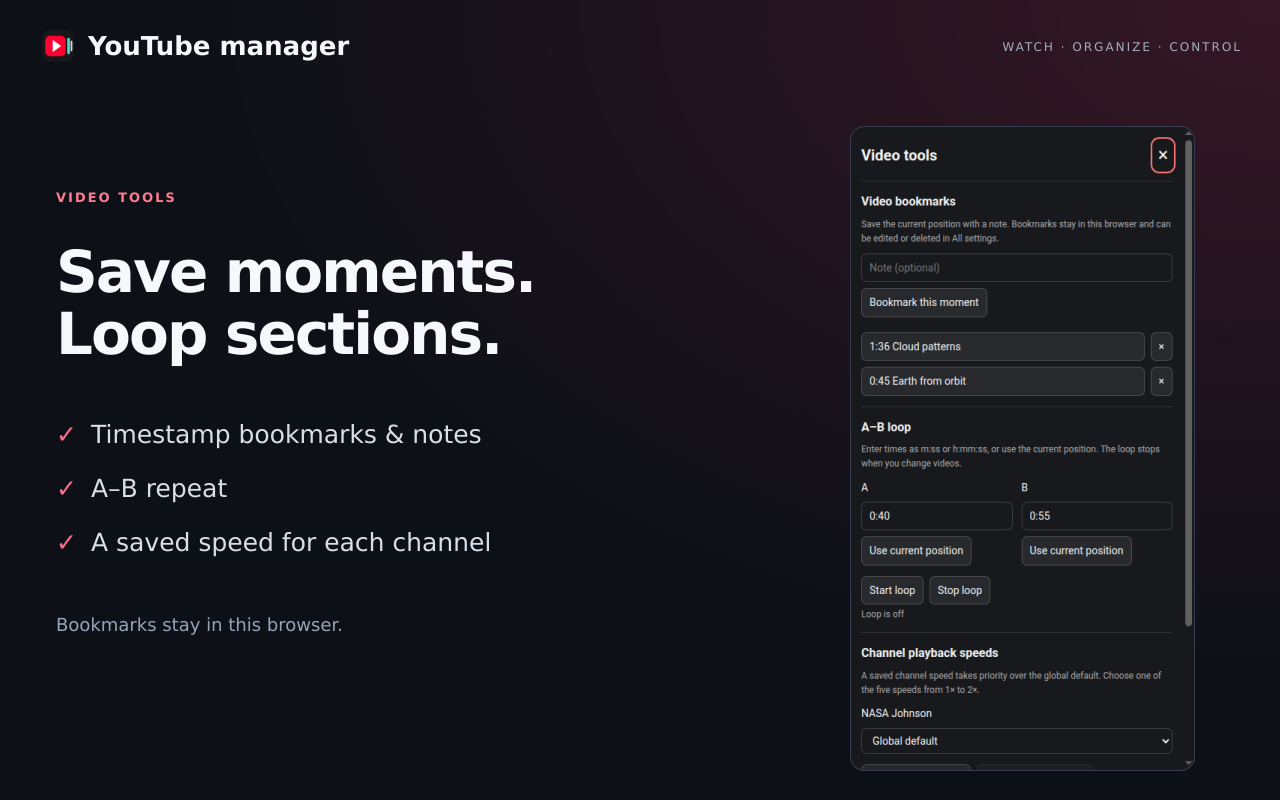
A useful explanation. A favorite moment. The part you want to hear one more time.
Save the timestamp and a few words. Search, edit and manage saved moments in All settings.
Set a start and end point to repeat a section. The loop stops when you change videos.
Give each channel its own pace, or return it to your global default whenever you like.
YOUR DEFAULTS. ALREADY THERE.
Quick settings for the everyday changes. A full settings page when you want to make it yours.
Playback, panel preferences and saved video tools live together, with illustrated guidance inside the extension.
Korean · English · Japanese · Simplified Chinese · Traditional Chinese · Spanish · French · German · Italian · Brazilian Portuguese · Indonesian · Vietnamese · Hindi · Arabic
GET COMFORTABLE.
Built to feel like part of the way you already watch.
Open the Chrome Web Store and select Add to Chrome.
Find the panel and playback controls alongside your video.
Choose your pace, adjust the panel and save the moments that matter.
Yes. The viewing tools described here are free to use. The extension includes clearly labeled affiliate advertisements, and purchases through those links are optional.
In your browser, using local extension storage. YouTube manager does not upload your bookmarks, notes or settings to a NewJin Soft server. It requests missing video and channel information from YouTube as needed.Read the privacy policy.
Yes. It adds playback controls and available channel/video information to the Shorts viewing experience and enhances supported video listings.
The extension relies on information available from YouTube. If a subscriber count or upload date cannot be confirmed, it is not invented or substituted.
No. It improves the viewing interface on the desktop YouTube website. It does not manage your YouTube account, upload videos or provide a separate video service.
Some extension screens display affiliate banners. Clicking a banner opens the advertiser’s or affiliate partner’s website. NewJin Soft may earn a commission from qualifying purchases. Saved viewing data is not used to personalize these advertisements.

YouTube manager for desktop Chrome.
Install from the Chrome Web Store